






Introduction: Why You Need the ECG PowerApp
Gone are the days of rushing to a vendor before they close, paying cash, and hoping the token arrives via SMS. The ECG PowerApp has transformed how Ghanaians manage their electricity accounts, putting the power of purchase—literally—in the palm of your hand .
With the app, you can buy prepaid credit 24/7, check your remaining balance instantly, track your daily consumption, report faults, and even view your transaction history . No more queuing. No more last-minute dashes. No more wondering where your electricity budget went.

This Accra Street Journal guide walks you through everything you need to know about the ECG PowerApp, from downloading and setting up your account to buying credit and monitoring your usage. Whether you’re a new user or just need a refresher, this step-by-step tutorial has you covered .
📢 GET A DETAILED ARTICLES + JOBS
Join ASJ's WhatsApp Channel and never miss a post or opportunity.

Part 1: Getting Started – Download and Setup
Step 1: Download the App
The ECG PowerApp is available for both Android and iOS devices.
| Platform | Where to Find It |
|---|---|
| Android | Google Play Store – search “ECG PowerApp” |
| iOS | Apple App Store – search “ECG PowerApp” |
Requirements:

-
Android: Version 7.0 or later
-
iOS: Version 13.0 or later; also compatible with iPadOS 13.0+, macOS 11.0+ (Apple M1 chip or later), and visionOS 1.0+
-
App Size: Approximately 109.2 MB
Ratings:
-
Google Play: 4.5 stars (98.1K reviews)
-
App Store: Not publicly rated
Step 2: Sign Up / Create an Account
Once the app is installed, you need to create an account.
| Step | Action |
|---|---|
| 1 | Open the ECG PowerApp |
| 2 | Click on “Sign Up” or “Register” |
| 3 | Enter your personal details (name, email, phone number) |
| 4 | Create a secure password |
| 5 | Verify your account via the confirmation link sent to your email or SMS |
Step 3: Add Your Meter Number
After creating an account, you need to link your meter.
| Step | Action |
|---|---|
| 1 | Navigate to the “Meter” section of the app |
| 2 | Click on “Add Meter” or “Link Meter” |
| 3 | Enter your meter number exactly as it appears on your meter |
| 4 | Verify the meter number (the app may ask you to confirm) |
Note: If you have multiple meters (e.g., for different properties), you can add each one to the same account and manage them separately .
Step 4: Verify Your Information
Complete the setup by confirming that your details are correct. This ensures that future purchases are linked to the correct meter and that you receive transaction confirmations .
Part 2: How to Buy Prepaid Credit
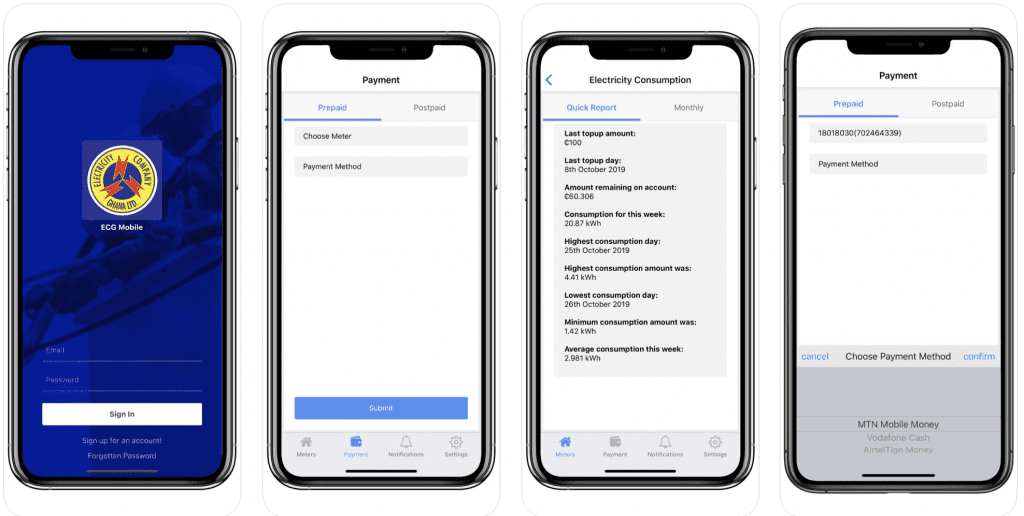
Step-by-Step Purchase Guide
| Step | Action |
|---|---|
| 1 | Open the ECG PowerApp and log in |
| 2 | Navigate to the “Buy Power” or “Purchase Credit“ section |
| 3 | Select the meter you want to buy credit for (if you have multiple meters) |
| 4 | Enter the amount you wish to purchase (e.g., GHS 50, GHS 100) |
| 5 | Choose your payment method (mobile money is most common) |
| 6 | Confirm the transaction details |
| 7 | Authorize the payment via your mobile money PIN |
| 8 | Your token will be displayed on the screen and also sent via SMS |
Transaction Fees: Mobile money transactions through the ECG PowerApp do NOT attract E-Levy or transaction fees .
Payment Methods
The ECG PowerApp supports multiple payment options:
| Payment Method | How to Use | Notes |
|---|---|---|
| Mobile Money | Select MTN MoMo, Telecel Cash, or AT Money | Most common; no extra fees |
| Bank Cards | Enter card details for payment | Works with Visa/Mastercard |
| ECG Wallet | Preload funds into your app wallet | For faster repeat purchases |
What to Do If the Transaction Fails
If your payment fails but your mobile money is debited:
| Step | Action |
|---|---|
| 1 | Do not attempt to purchase again immediately |
| 2 | Check the transaction status in the app’s Transaction History |
| 3 | Wait 10–15 minutes – tokens may be delayed |
| 4 | If token still not received, request a refund through the app’s refund feature |
| 5 | Funds can be withdrawn instantly to your mobile money wallet or bank account |
Pro Tip: The app’s refund feature allows you to withdraw money directly to your mobile money wallet or bank account without visiting an ECG office .

Part 3: How to Check Your Balance
View Remaining Credit
| Step | Action |
|---|---|
| 1 | Open the ECG PowerApp and log in |
| 2 | Navigate to the “Meter” section |
| 3 | Select your linked meter |
| 4 | Click on “See Details” |
| 5 | Your remaining balance will be displayed |
View Daily Consumption
The ECG PowerApp allows you to track your daily electricity usage.
| Step | Action |
|---|---|
| 1 | From the meter details screen, look for “Consumption History” |
| 2 | Select the time period you want to view (daily, weekly, monthly) |
| 3 | The app will display your usage in Ghana cedis or kilowatt-hours (kWh) |
Why This Matters: Tracking your daily consumption helps you:
-
Identify which appliances consume the most electricity
-
Adjust your usage habits to save money
-
Detect unusual spikes that might indicate a fault or leak
View Transaction History
To see all your past purchases:
| Step | Action |
|---|---|
| 1 | Navigate to “Transaction History” in the app menu |
| 2 | View all your past purchases, including dates, amounts, and token numbers |
| 3 | Click on any transaction to see details or retrieve a lost token |
This feature is especially useful if you need to retrieve a lost token .
Part 4: How to Pay Postpaid Bills
If you have a postpaid (monthly bill) account rather than a prepaid meter, the ECG PowerApp can also handle your payments.
| Step | Action |
|---|---|
| 1 | Open the ECG PowerApp and log in |
| 2 | Navigate to the “Meter” column |
| 3 | Click on “See Details” |
| 4 | Select the month you want to view |
| 5 | Under “Your Opening Balance,” click “See Your Monthly Bill” |
| 6 | Click “View Bill” to see the detailed statement |
| 7 | Select the month and year, then choose to download and print your bill if needed |
| 8 | Click “Pay Bill” to settle your outstanding balance |
Note: Postpaid customers can also use the app to view their payment history and track past bills .
Part 5: Other Useful Features
Report Faults
You can report electricity faults directly through the app without calling the call center.
| Step | Action |
|---|---|
| 1 | Navigate to the “Report Fault” section |
| 2 | Select the type of fault (e.g., no power, voltage fluctuation, sparking) |
| 3 | Enter your location details |
| 4 | Submit the report |
The app will generate a reference number you can use to track the status of your report .
Request Refunds
If a transaction fails but your money is deducted, you can request a refund through the app.
| Step | Action |
|---|---|
| 1 | Go to “Transaction History” |
| 2 | Select the failed transaction |
| 3 | Click on “Request Refund” |
| 4 | Follow the prompts to withdraw funds to your mobile money wallet or bank account |
Refunds are processed faster through the app than through traditional methods .
Manage Multiple Meters
If you own multiple properties or manage meters for family members, you can add all meters to one account.
| Step | Action |
|---|---|
| 1 | Go to the “Meter” section |
| 2 | Click “Add Meter” |
| 3 | Enter the new meter number |
| 4 | Repeat for each meter |
You can switch between meters easily when making purchases or checking balances .
Receive Real-Time Notifications
Enable push notifications in the app settings to receive:
-
Confirmation of successful purchases
-
Alerts when your credit is running low
-
Notifications about planned outages in your area
-
Updates on reported faults
Part 6: Comparison – App vs USSD vs Vendor
| Feature | ECG PowerApp | USSD *226# | Physical Vendor |
|---|---|---|---|
| Requires smartphone | Yes | No | No |
| Requires internet | Yes | No | No |
| 24/7 availability | Yes | Yes | No (vendor hours) |
| Check balance | Yes | Yes | No |
| Track consumption | Yes | No | No |
| View transaction history | Yes | Limited | No |
| Report faults | Yes | No | No |
| Request refunds | Yes | No | No |
| Mobile money fees/E-Levy | None | None | Variable |
| Best for | Full account management | Quick checks | Cash customers |
Part 7: Troubleshooting Common App Issues
Issue 1: App Not Working During System Upgrades
ECG has warned that users may experience issues with the ECG Power App during system upgrade exercises . If the app is not working:
-
Try using the USSD code
*226#as an alternative -
Purchase from a physical ECG prepayment vendor
-
Wait a few hours and try again
Issue 2: Can’t Link Meter
If you are unable to add your meter to the app:
-
Verify that you have the correct meter number
-
Ensure the meter number is entered exactly as it appears on your meter
-
Contact ECG customer service at 0302 611 611 for assistance
Issue 3: Balance Shows GHS 0.00 Incorrectly
Some users have reported that the app sometimes displays a balance of 0.00 even when there is credit on the meter . This is a known technical issue.
What to do:
-
Check your balance using the USSD code
*226#as a backup -
Check directly on your smart meter interface
-
Report the issue through the app’s feedback feature
Issue 4: App Crashes or Freezes
| Fix | Action |
|---|---|
| Update the app | Check Google Play Store or Apple App Store for updates |
| Clear cache | Android: Settings → Apps → ECG PowerApp → Clear Cache |
| Reinstall | Delete and reinstall the app (your account data is saved) |
| Check device compatibility | Ensure your device meets minimum requirements (Android 7.0+, iOS 13.0+) |
Part 8: Security Tips
Protect Your Account
| Tip | Why It Matters |
|---|---|
| Use a strong password | Prevents unauthorized access to your account |
| Enable biometric login | Use fingerprint or face ID for faster, more secure access |
| Never share your PIN | ECG will never ask for your mobile money PIN |
| Log out on shared devices | If you use the app on someone else’s phone, always log out |
Beware of Scams
ECG does not have any private mobile money accounts. All legitimate payments must go through the ECG PowerApp or the official short code *226#.
Red flags:
-
Anyone calling to demand payment to “release” your token
-
Messages asking you to call a personal number for token retrieval
-
Offers to “help” retrieve your token for a fee
Verified ECG Contact Channels:
-
Official Short Code:
*226# -
Customer Service Line: 0302 611 611
-
WhatsApp: +233 302 611 611
Frequently Asked Questions (FAQs)
1. How do I download the ECG PowerApp?
Download it from the Google Play Store (Android) or Apple App Store (iOS). Search for “ECG PowerApp” .
2. Is the ECG PowerApp free?
Yes, the app is completely free to download and use .
3. Can I buy prepaid credit through the app?
Yes. Navigate to the “Buy Power” section, select your meter, enter the amount, and pay via mobile money or bank card .
4. Does using the app cost extra money?
No. ECG has confirmed that transactions via the app do not attract mobile money charges or E-Levy fees .
5. How do I check my remaining balance?
Open the app, go to the “Meter” section, select your meter, and click “See Details.” Your remaining balance will be displayed .
6. Can I track my daily electricity consumption?
Yes. The app allows you to view your consumption history daily, weekly, or monthly .
7. What should I do if my transaction fails but my money is deducted?
Do not repurchase immediately. Check your transaction history, wait 10-15 minutes, then request a refund through the app’s refund feature .
8. Can I use the app for postpaid bills?
Yes. The app allows postpaid customers to view monthly bills, download statements, and make payments .
9. What if the app is not working?
Try using the USSD code *226# as an alternative, purchase from a physical vendor, or wait a few hours during system upgrades .
10. How do I contact ECG if I have app issues?
Call ECG’s customer service line at 0302 611 611 or WhatsApp +233 302 611 611 . You can also email [email protected] .
Summary Table: ECG PowerApp Features
| Feature | Available | Notes |
|---|---|---|
| Buy prepaid credit | ✅ | 24/7, no extra fees |
| Check remaining balance | ✅ | Real-time display |
| Track daily consumption | ✅ | Daily, weekly, monthly views |
| View transaction history | ✅ | Retrieve lost tokens |
| Pay postpaid bills | ✅ | View and pay monthly bills |
| Report faults | ✅ | Generate reference number |
| Request refunds | ✅ | Instant withdrawal to mobile money |
| Multiple meters | ✅ | Manage all properties |
| Push notifications | ✅ | Low credit alerts, outage updates |
Conclusion From ASJ
The ECG PowerApp has revolutionized how Ghanaians manage their electricity accounts. With the ability to buy credit 24/7, track your daily consumption, and report faults from your phone, the app puts you in control of your electricity usage.
Whether you’re a prepaid or postpaid customer, the app offers features that save time, reduce stress, and help you manage your electricity budget more effectively. And with no extra transaction fees, it’s also the most cost-effective way to buy power .
Download the ECG PowerApp today from the Google Play Store or Apple App Store, link your meter, and take control of your electricity.
Frequently Asked Questions (FAQs)
1. How do I download the ECG PowerApp?
From Google Play Store (Android) or Apple App Store (iOS) .
2. Is the ECG PowerApp free?
Yes .
3. Can I buy prepaid credit through the app?
Yes, 24/7 .
4. Does using the app cost extra money?
No. No mobile money charges or E-Levy fees .
5. How do I check my remaining balance?
“Meter” section → select your meter → “See Details” .
6. Can I track my daily electricity consumption?
Yes, daily, weekly, or monthly views .
7. What if my transaction fails but my money is deducted?
Wait 10-15 minutes, then request a refund through the app .
8. Can I use the app for postpaid bills?
Yes .
9. What if the app is not working?
Use USSD *226# or purchase from a physical vendor .
10. How do I contact ECG for app issues?
Call 0302 611 611 or WhatsApp +233 302 611 611
Source: Accra Street Journal
Last Updated on April 12, 2026 by Samuel Kwame Boadu
Disclaimer: Some content on Accra Street Journal may be aggregated, summarized, or edited from third-party sources for informational purposes. Images and media are used under fair use or royalty-free licenses. Accra Street Journal is a subsidiary of SamBoad Publishing Hub under SamBoad Business Group Ltd, registered in Ghana since 2014.
For concerns or inquiries, please visit our Privacy Policy or Contact Page.

Samuel Kwame Boadu is a Ghanaian media entrepreneur and storyteller with a passion for amplifying urban voices and uncovering everyday truths. He is the Editor-in-Chief and Founder of Accra Street Journal, a dynamic digital platform dedicated to capturing the pulse of Ghana’s capital—its people, culture, challenges, business, sports and innovations.